
You install an SSL certificate, update your site URLs to https://, and load your homepage—only to see Chrome still flagging a broken padlock or a “Not Secure” mixed content warning. It happens when your initial HTML loads securely over HTTPS, but sub-resources (images, scripts, stylesheets, or fonts) are still being fetched over plain HTTP.
Modern browsers will silently block active mixed content (like scripts and iframes) and strip away your secure padlock for passive mixed content (like images). To fix it for good, you need to track down the insecure asset URLs, update serialized entries in your database, fix theme enqueues, and enforce server-level 301 redirects.
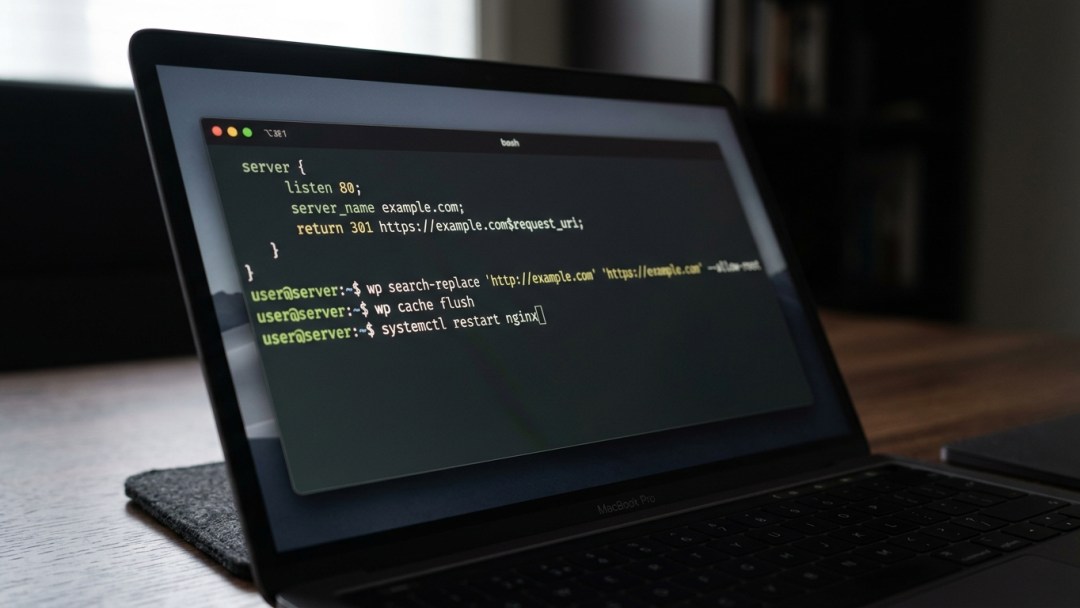
1. Inspect Insecure Assets in Browser DevTools
Before touching the database or editing server configs, let’s see exactly what’s breaking the padlock. Open your WordPress site in Chrome or Firefox, hit F12 (or Cmd+Option+I / Ctrl+Shift+I), and switch to the Console tab.
You’ll see yellow or red warnings calling out every insecure resource:
Mixed Content: The page at 'https://example.com/' was loaded over HTTPS,
but requested an insecure element 'http://example.com/wp-content/uploads/2024/05/hero-banner.jpg'.
This request was automatically upgraded to HTTPS, but may be blocked in future versions.
If scripts or API calls are failing, DevTools will log Blocked loading mixed active content. As outlined in the MDN Mixed Content specification, browsers block active mixed content outright because unencrypted JavaScript can be intercepted and tampered with in transit.
Check where the flagged URLs are coming from:
- Old uploads sitting inside
/wp-content/uploads/. - Hardcoded CSS/JS links inside your active theme or child theme.
- External fonts or CDN scripts requesting unencrypted
http://endpoints. - Third-party plugins with hardcoded absolute HTTP paths.
2. Update WordPress Address and Site Address
If your WordPress admin settings still point to http://, WordPress will keep generating internal asset links over HTTP. Head to Settings > General and make sure both WordPress Address (URL) and Site Address (URL) start with https://.
If these fields are greyed out, they’re hardcoded in your wp-config.php file. You can override and lock in the HTTPS URLs by adding these lines right above the /* That's all, stop editing! Happy publishing. */ line:
define('WP_HOME', 'https://example.com');
define('WP_SITEURL', 'https://example.com');
These constants override whatever values are stored in your wp_options table. If your site sits behind Cloudflare, a reverse proxy, or an AWS load balancer, WordPress might not realize HTTPS is already terminated at the edge, triggering a redirect loop. If you hit that, check our guide on how to fix SSL ERR_TOO_MANY_REDIRECTS on Nginx behind a CDN.
To prevent reverse proxy detection loops, place this block in wp-config.php right above your URL definitions:
if (isset($_SERVER['HTTP_X_FORWARDED_PROTO']) && $_SERVER['HTTP_X_FORWARDED_PROTO'] === 'https') { $_SERVER['HTTPS'] = 'on';
}
3. Run a Serialized Database Search and Replace with WP-CLI
Changing your site URL doesn’t touch existing post content, featured images, theme options, or page builder blocks. Those still contain hardcoded strings like http://example.com/wp-content/uploads/....
Do not run a raw SQL query like UPDATE wp_posts SET post_content = REPLACE(...). WordPress stores widgets, theme settings, and page builder data as serialized PHP strings. A raw SQL replace breaks string length counters (like s:19:"http://example.com"), which corrupts serialized arrays and wipes your widgets and layout settings.
The cleanest way to handle this is using WP-CLI over SSH. If you need a refresher on database CLI workflows, check our guide on how to import large WordPress databases via SSH and WP-CLI.
Always run a dry run first to see how many instances will be replaced without altering live data:
wp search-replace 'http://example.com' 'https://example.com' --dry-runIf the dry run output looks clean, run the actual replacement:
wp search-replace 'http://example.com' 'https://example.com' --precise --recurse-objects --all-tablesHere is why those flags matter:
--precise: Recalculates exact string byte lengths for serialized data so nothing breaks.--recurse-objects: Walks through nested PHP objects and serialized arrays.--all-tables: Catches custom tables created by page builders (Elementor, Beaver Builder, WooCommerce) alongside standard WordPress tables.
Once it finishes, flush your object cache and any persistent cache storage:
wp cache flush4. Fix Hardcoded Assets in Custom Themes and Plugins
If DevTools still shows mixed content warnings after your database replacement, the URLs are probably hardcoded inside template files (like header.php or footer.php) or enqueued in functions.php.
Look out for script or stylesheet registrations using absolute HTTP paths:
// INCORRECT: Hardcoded HTTP external font
wp_enqueue_style('custom-google-fonts', 'http://fonts.googleapis.com/css?family=Inter:400,700');
// CORRECT: Protocol-relative or explicit HTTPS URL
wp_enqueue_style('custom-google-fonts', 'https://fonts.googleapis.com/css?family=Inter:400,700');
For local theme assets, never hardcode domain names. Use WordPress helper functions that automatically match the current protocol:
// Standard dynamic script enqueueing
wp_enqueue_script( 'custom-script', get_stylesheet_directory_uri() . '/js/app.js', array('jquery'), '1.0.0', true
);
If you’re not sure which theme file has static HTTP links, use grep in your terminal to search your theme folder:
grep -rn "http://" wp-content/themes/your-active-theme/Open the flagged templates and swap those URLs to relative paths or HTTPS. If you want to test these changes without risking your live site, spin up a test instance using our guide on how to create a WordPress staging site in Hostinger hPanel.
5. Force HTTPS with Web Server Redirects
Fixing mixed content handles your page assets, but visitors who type your domain without https:// or follow old inbound links might still land on plain HTTP. Set up server-level 301 redirects to send all traffic to HTTPS before WordPress even loads.
For Apache and LiteSpeed (.htaccess)
Open the .htaccess file in your WordPress root directory and paste this block at the very top, before the # BEGIN WordPress section:
RewriteEngine On
RewriteCond %{HTTPS} off
RewriteRule ^(.*)$ https://%{HTTP_HOST}%{REQUEST_URI} [L,R=301]
If your server sits behind an SSL-offloading proxy or load balancer, check the forwarded protocol header instead:
RewriteEngine On
RewriteCond %{HTTP:X-Forwarded-Proto} !https
RewriteCond %{HTTPS} off
RewriteRule ^(.*)$ https://%{HTTP_HOST}%{REQUEST_URI} [L,R=301]
For Nginx (Server Block)
On Nginx, handle redirects by separating port 80 traffic from port 443. Open your site’s virtual host configuration (usually in /etc/nginx/sites-available/example.com) and add a dedicated server block for HTTP:
server { listen 80; listen [::]:80; server_name example.com www.example.com; return 301 https://example.com$request_uri;
} server { listen 443 ssl http2; listen [::]:443 ssl http2; server_name example.com www.example.com; ssl_certificate /etc/ssl/certs/example.com.crt; ssl_certificate_key /etc/ssl/private/example.com.key; root /var/www/html; index index.php index.html; # ... remainder of your WordPress location blocks
}
If you’re configuring certificates manually, see our walkthrough on how to install Namecheap SSL on Nginx by combining CRT and CA-Bundle files.
Always verify your Nginx syntax before reloading:
sudo nginx -t && sudo systemctl reload nginx6. Set Up Upgrade-Insecure-Requests via Content Security Policy (CSP)
If you run a large site with thousands of legacy posts or external user embeds, tracking down every stray http:// reference in raw HTML takes time. You can instruct modern browsers to automatically fetch all insecure assets over HTTPS on the fly using a Content Security Policy header.
According to the MDN Upgrade-Insecure-Requests documentation, this header forces client browsers to rewrite http:// asset URLs to https:// in memory before sending the request.
Option A: Add Header via Nginx
In your port 443 Nginx server block, add:
add_header Content-Security-Policy "upgrade-insecure-requests;" always;Option B: Add Header via Apache (.htaccess)
Add this directive to your .htaccess file:
Header always set Content-Security-Policy "upgrade-insecure-requests;"
Option C: Send Header via PHP in functions.php
If you can’t edit server config files, dispatch the header via your active theme’s functions.php:
function isitdev_force_ssl_header() { header("Content-Security-Policy: upgrade-insecure-requests;");
}
add_action('send_headers', 'isitdev_force_ssl_header');
Keep in mind: upgrade-insecure-requests is a helpful fallback, but it won’t fix assets hosted on external servers that don’t support SSL at all. You still need to replace or host those resources locally.
7. Verify the HTTPS Redirection Chain with cURL
Once your changes are live, verify that your server returns a clean 301 redirect without infinite loops. Run a terminal test with curl to inspect the response headers:
curl -IL http://example.comYou should see an immediate HTTP/1.1 301 Moved Permanently followed by an HTTP/2 200 from the HTTPS endpoint:
HTTP/1.1 301 Moved Permanently
Location: https://example.com/
Server: nginx
Date: Tue, 04 Jun 2024 10:15:20 GMT HTTP/2 200 server: nginx
date: Tue, 04 Jun 2024 10:15:21 GMT
content-type: text/html; charset=UTF-8
strict-transport-security: max-age=31536000; includeSubDomains
For more details on official WordPress SSL requirements, check the WordPress HTTPS documentation.
Frequently Asked Questions
Why does the mixed content warning persist after updating my database?
Your server-side cache (Redis, Memcached, Varnish) or CDN is likely serving cached HTML containing old HTTP links. Purge your WordPress cache plugin, clear your CDN cache, and open your site in an Incognito window to force a clean fetch.
Can I just use the “Really Simple SSL” plugin instead?
Plugins like Really Simple SSL work by intercepting output buffers and dynamically rewriting http:// strings to https:// on every single request. That adds PHP overhead to every page load. Replacing URLs directly in your database via WP-CLI and using server-level redirects is permanent, clean, and has zero runtime performance penalty.
What happens if an external image source does not support HTTPS?
If a third-party server hosting an image lacks an active SSL certificate, browsers will block it or drop your secure padlock regardless of your site settings. Download that image, upload it to your own WordPress Media Library, and update the link to your secure domain.
Does forcing HTTPS hurt my SEO rankings?
No. HTTPS is a confirmed ranking signal. With standard 301 redirects in place, search engines transfer page authority directly to the HTTPS URLs. Just make sure you add and verify the https:// property in Google Search Console.
