
Most CodeCanyon PHP scripts fail on shared hosting right out of the box. You unzip the archive, open your domain, and stare at a white screen of death, a 500 Internal Server Error, or an installer crying about permissions. Why? Because the authors usually build them on local environments or VPS setups with root privileges, not locked-down cPanel or hPanel environments.
I’ve deployed dozens of these scripts over the years—everything from SaaS dashboards to basic invoice apps. Here’s how to get your database connected, permissions fixed, document root straightened out, and background cron jobs actually running on shared hosting.
Check PHP Version and Extensions First
Before you upload anything, check what PHP runtime your account is running. Most modern CodeCanyon items (especially Laravel 9, 10, or 11 builds) demand PHP 8.1 or 8.2 and will crash instantly on anything older.
Jump into your control panel (cPanel, DirectAdmin, or hPanel) and head to PHP Configuration or Select PHP Version. Make sure you enable these extensions:
bcmath,ctype,fileinfo, andjsonmbstring,openssl,pdo_mysql, andtokenizerxml,curl,zip, andgd(orimagick)
If your app resizes large user uploads, handles video processing, or imports giant CSV files, you’ll probably hit server execution caps. If things hang during database migrations, check our guide to increase PHP memory limit and execution time so the installer doesn’t choke halfway through.
Need something less common like intl or sodium? Refer to the official PHP extensions documentation to see what each module requires.
Fix the Document Root for Laravel-Based Scripts
Old-school PHP apps keep index.php in the main folder, but modern frameworks stash the entry point inside a public/ subfolder. On shared hosting, your domain usually points straight to public_html.
If you dump everything straight into public_html, visitors have to type yourdomain.com/public just to view the homepage. Worse: your raw .env file with cleartext database passwords sits out in the open where anyone can download it.
Option A: Point the Document Root via Control Panel
If your host lets you change document roots (standard for cPanel Addon domains/Subdomains or hPanel domains), change the target folder from:
/home/username/public_htmlTo the actual public directory:
/home/username/public_html/publicOption B: Use Root-Level .htaccess Redirection
If you’re on a cheap shared plan that locks your primary domain to public_html with no setting to change it, drop a custom .htaccess file right into public_html. This rewrites requests behind the scenes into /public without exposing the folder in the URL bar.
Add this to public_html/.htaccess:
RewriteEngine On RewriteRule ^(.*)$ public/$1 [L]
If you run into routing loops or missing asset issues, read through the Apache mod_rewrite documentation to tune rewrite conditions.
Create the MySQL Database and User
Almost every CodeCanyon script either includes an automated web setup wizard or a raw database.sql file you have to import manually. You need an empty database and user ready beforehand.
- Open MySQL Databases in your control panel.
- Create a new database (e.g.,
user_portal). - Create a database user with a strong password. (Quick tip: avoid
$, quotes, or backslashes in the password, as poorly written PHP installers sometimes fail to parse them inside.envfiles). - Find Add User to Database, select your user and database, click Add, and tick ALL PRIVILEGES.
Keep note of your DB Name, Username, Password, and Host (almost always localhost or 127.0.0.1).
Extract Files and Configure the .env File
Upload the script’s .zip file via File Manager or SFTP and extract it into your target directory. Make sure “Show Hidden Files” is enabled in your File Manager so you don’t overlook dotfiles like .env or .htaccess.
If the script doesn’t come with an automatic installer, find .env.example, duplicate it as .env, and plug in your database details directly:
APP_NAME="AppLauncher"
APP_ENV=production
APP_KEY=base64:Dk3...YOUR_GENERATED_KEY...=
APP_DEBUG=false
APP_URL=https://yourdomain.com DB_CONNECTION=mysql
DB_HOST=127.0.0.1
DB_PORT=3306
DB_DATABASE=cpaneluser_portal
DB_USERNAME=cpaneluser_dbuser
DB_PASSWORD=SecurePassword123!
If this is a fresh setup on a brand-new domain, make sure you’ve finished pointing your domain DNS so your SSL certificate resolves cleanly before you hit the setup wizard.
Set Correct Directory Permissions and Symlinks
Bad file permissions cause most 500 errors on shared hosting. The web server process (usually www-data, nobody, or your specific cPanel user pool) needs write access to temporary folders, session storage, and media directories.
The safe standard on shared servers is:
- Folders:
755(drwxr-xr-x) - Files:
644(-rw-r--r--) - Upload/Cache folders:
775or755(depending on whether your host uses suPHP, FastCGI, or mod_php).
For Laravel apps, make sure these specific directories are writable:
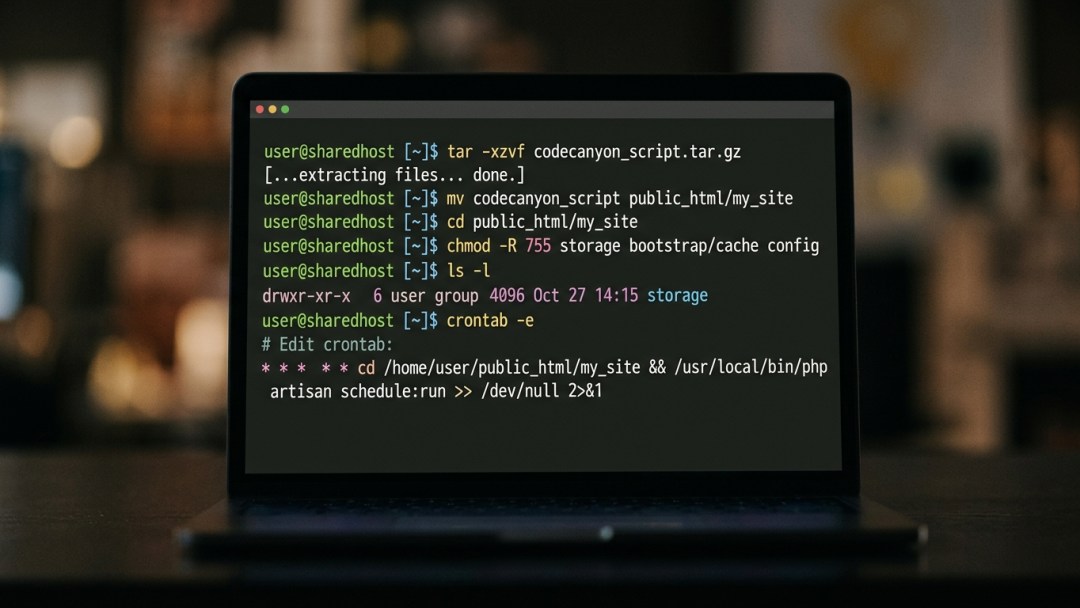
chmod -R 775 storage
chmod -R 775 bootstrap/cache
The Storage Symlink Problem
Laravel writes uploaded files to storage/app/public and serves them through a symlink at public/storage. Because shared hosting rarely provides terminal access to run php artisan storage:link, images often 404 immediately after uploading. You can bypass this with a one-off PHP helper script.
Drop a temporary file named symlink.php into your public/ folder:
Load yourdomain.com/symlink.php in your browser once to build the link, then delete the file immediately.
Set Up the Background Cron Job
Nearly all CodeCanyon platforms need cron jobs for queued emails, subscription renewal checks, and background data syncs. If users aren’t getting confirmation emails, your cron probably isn’t running.
Head to Cron Jobs in your control panel. For Laravel scripts, you only need one master schedule runner executing every single minute (* * * * *):
* * * * * /usr/local/bin/php /home/username/public_html/artisan schedule:run >> /dev/null 2>&1For standalone procedural PHP scripts, the cron command usually calls the target file directly:
0 * * * * /usr/local/bin/php /home/username/public_html/cron.php >> /dev/null 2>&1Double-check the PHP binary path. On many cPanel servers, plain /usr/local/bin/php defaults to an outdated version like PHP 7.4. Use the full path for your selected runtime, such as /usr/local/bin/ea-php82 or /opt/alt/php82/usr/bin/php. If you’re building custom intervals, check your cron schedule with Crontab Guru first.
Troubleshooting Common Installation Gotchas
Here are two issues I run into all the time on shared hosting and how to solve them:
1. cURL Error 60: SSL Certificate Problem
This happens during purchase code validation. The installer tries to verify your license with Envato’s API, but the shared server’s CA certificates are missing or out of date.
Ask your host’s support team to update the CA bundle, or supply your own CA bundle inside your custom php.ini:
curl.cainfo = "/etc/pki/tls/certs/ca-bundle.crt"
openssl.cafile = "/etc/pki/tls/certs/ca-bundle.crt"
2. 500 Error with Blank Screen
Shared hosting hides fatal errors by default. Open your .env file and temporarily set APP_DEBUG=true, or inspect storage/logs/laravel.log through File Manager. You’ll usually spot an invalid database password or a missing PHP extension right away.
Frequently Asked Questions
Why does my CodeCanyon script say the license code is invalid?
Make sure your host allows outbound cURL requests on ports 80 and 443. Some strict shared firewall policies block outgoing connections to third-party endpoints like api.envato.com until support whitelists them.
Can I run artisan migrate without terminal access?
Yes. If you don’t have SSH access, either
import the included database.sql file directly through phpMyAdmin, or add a temporary route in routes/web.php that executes Artisan::call('migrate') when visited in your browser.Should I set folder permissions to 777 to fix upload errors?
Never use 777 on shared servers. Most modern security modules (like mod_security or suexec) will actually block any file or folder that is world-writable, triggering an instant 500 Internal Server Error.
Next Steps
Once everything works, configure your outgoing mail with authenticated SMTP rather than standard PHP mail(). Setting up SPF and DKIM records on your domain will keep your automated welcome emails and password resets out of users’ spam folders.
